Directory management
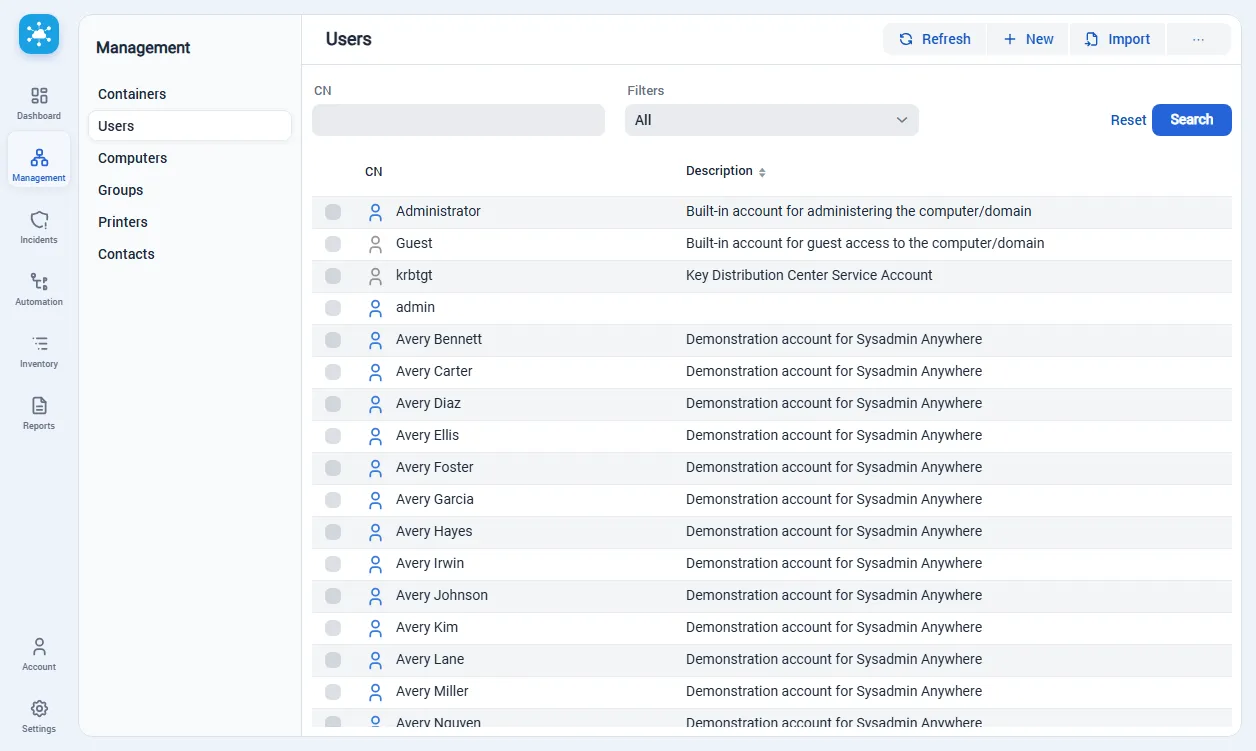
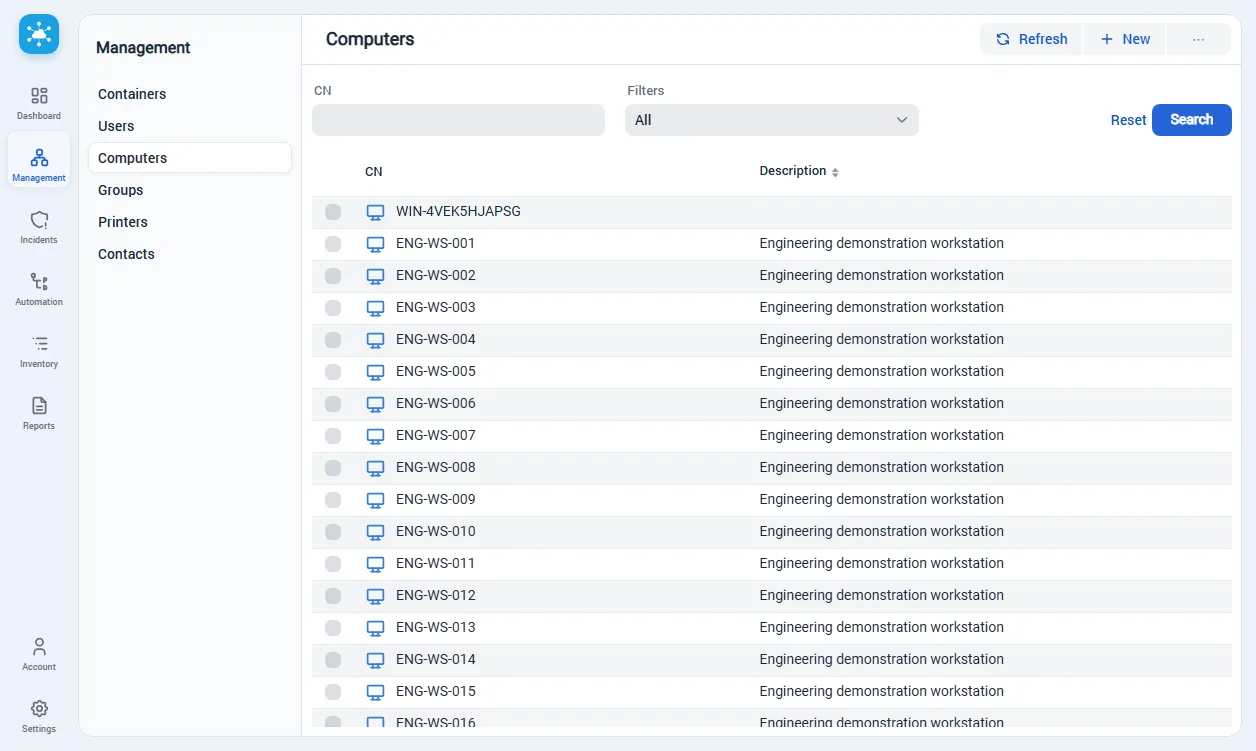
The Management menu contains containers, users, computers, groups, contacts and printers. Click a row to open the object’s details. Disabled user and computer accounts have muted icons in lists.
These screenshots show the users and computers lists in a demonstration directory with hundreds of objects.
Search
Section titled “Search”Use Domain → Search (/domain/search) to find users, computers, groups, contacts and printers by name and other directory identifiers. Open a result to inspect its details. Search results depend on the connected directory and the account’s read permissions.
Bulk operations
Section titled “Bulk operations”Select objects with checkboxes; a row click still opens the object. Supported actions include enabling/disabling accounts, changing group membership, moving objects and deleting selected objects. Available actions depend on object type and your permissions. Review the preview and confirmation, then read per-object results: partial success is possible. Avoid selecting system or unknown object types for destructive actions.
Import
Section titled “Import”User and group CSV/Excel import supports a preview, validation errors per row and rollback of objects created by that import. Check the target container and attributes before applying. Rollback cannot undo unrelated changes made after import.
For investigation, Domain → Audit shows directory change metadata and the application change journal. Credential values are redacted from journal snapshots.